
How to export a model from the SAM3D playground and place it in Blender

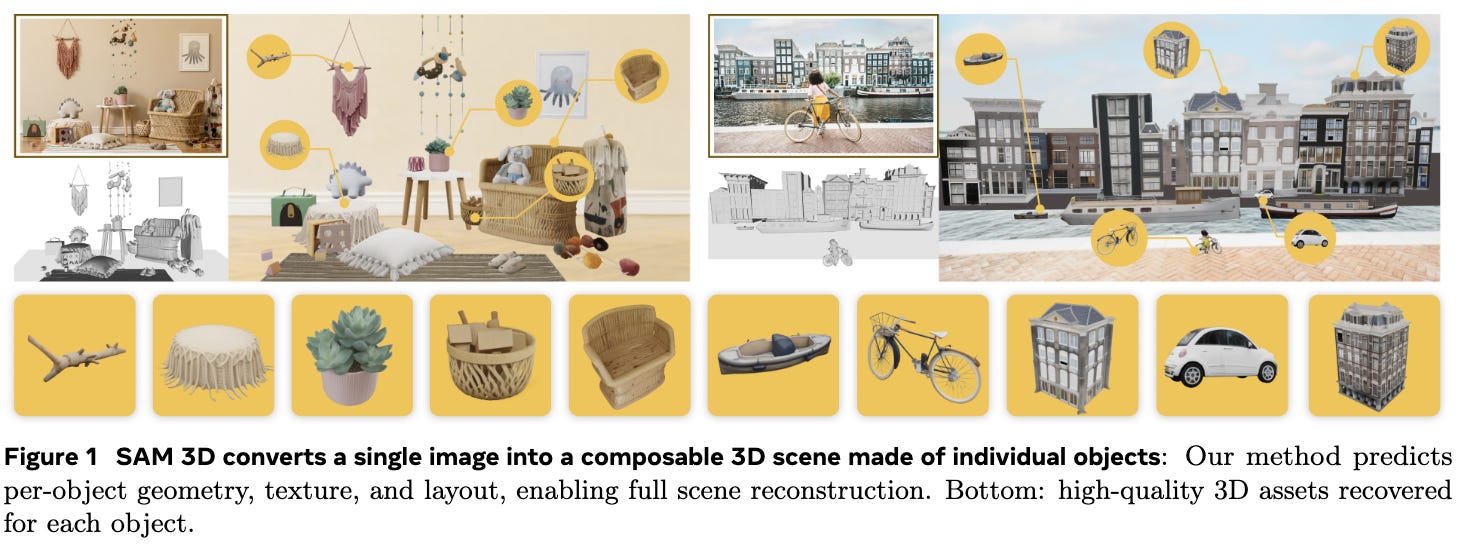
SAM3D recently released, and it’s a really exciting development in the image to 3D space. It provides an opportunity to grab anything from a space and convert it into a composable 3D scene.
Unfortunately, the requirements for running SAM3D consist of :
A linux 64-bits architecture (i.e.
linux-64platform inmamba info).A NVIDIA GPU with at least 32 Gb of VRAM.
As someone who doesn’t have the cash laying around, I wanted to create a scene for my geospatial map-creation demo, and as of 23/11/2025, there’s no inference providers onto the hugging-face space.
By default, the playground provided for the latest release also doesn’t let you download the gaussian splat, only letting you export a video.
This however, can be solved.
1. Getting A Splat
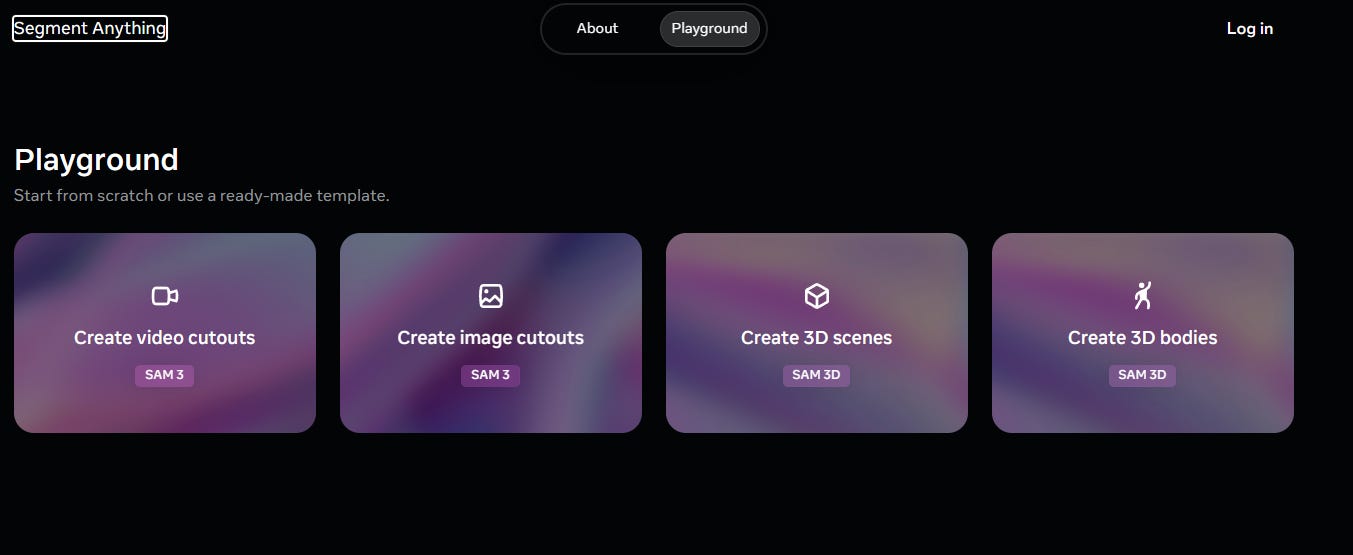
After entering the SAM 3D playground, go into developer mode and access the network call diagrams. When generating the image, you should see a small octet stream pop up, with a https://video.xx.fbcdn.net/01 subdomain.
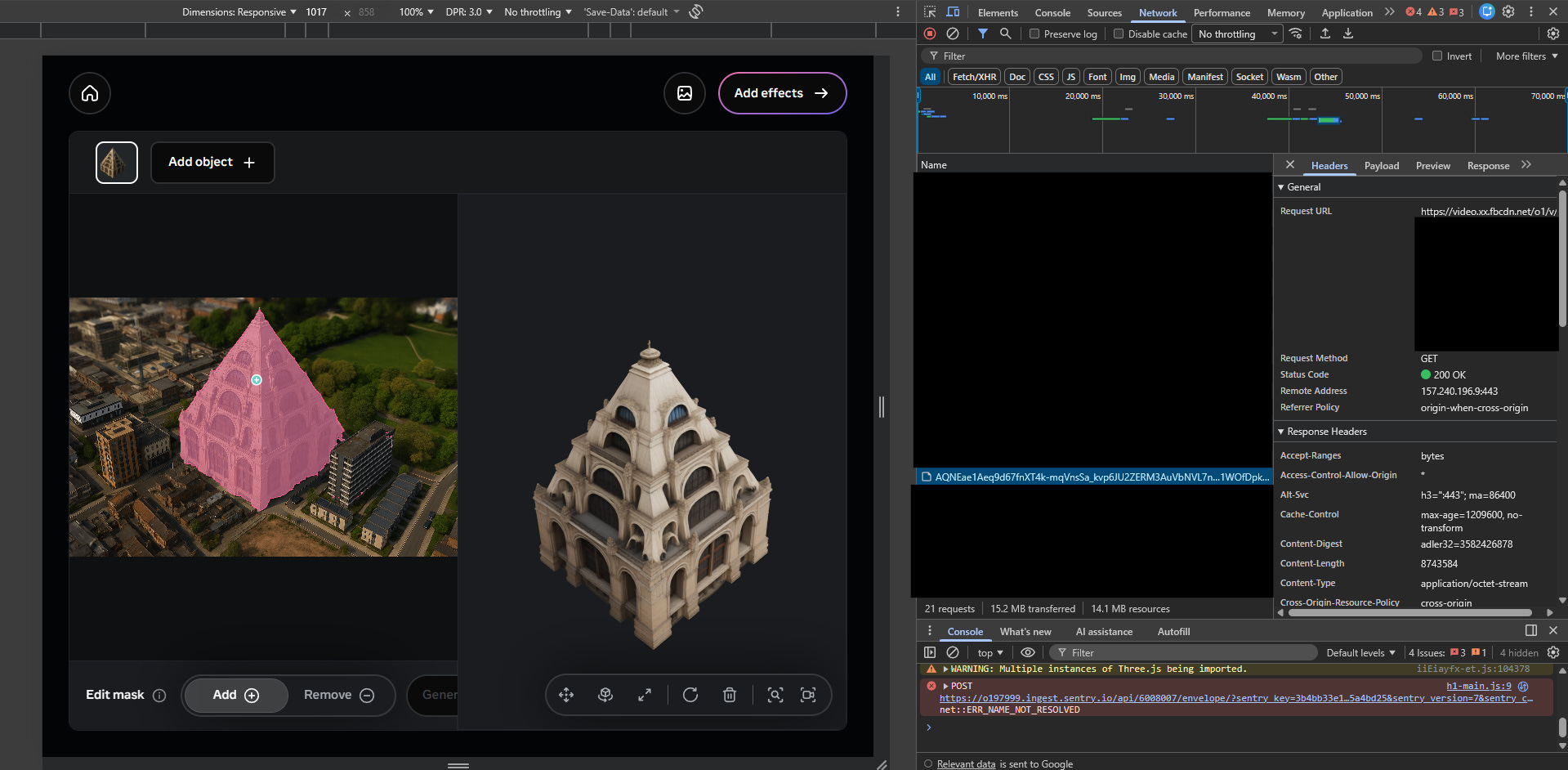
This link is the raw FBX splat for the generated 3D object, rename it to .fbx to be able to view it in normal geosplatting software.
To import into Blender, add the kiri engine blender render add on.
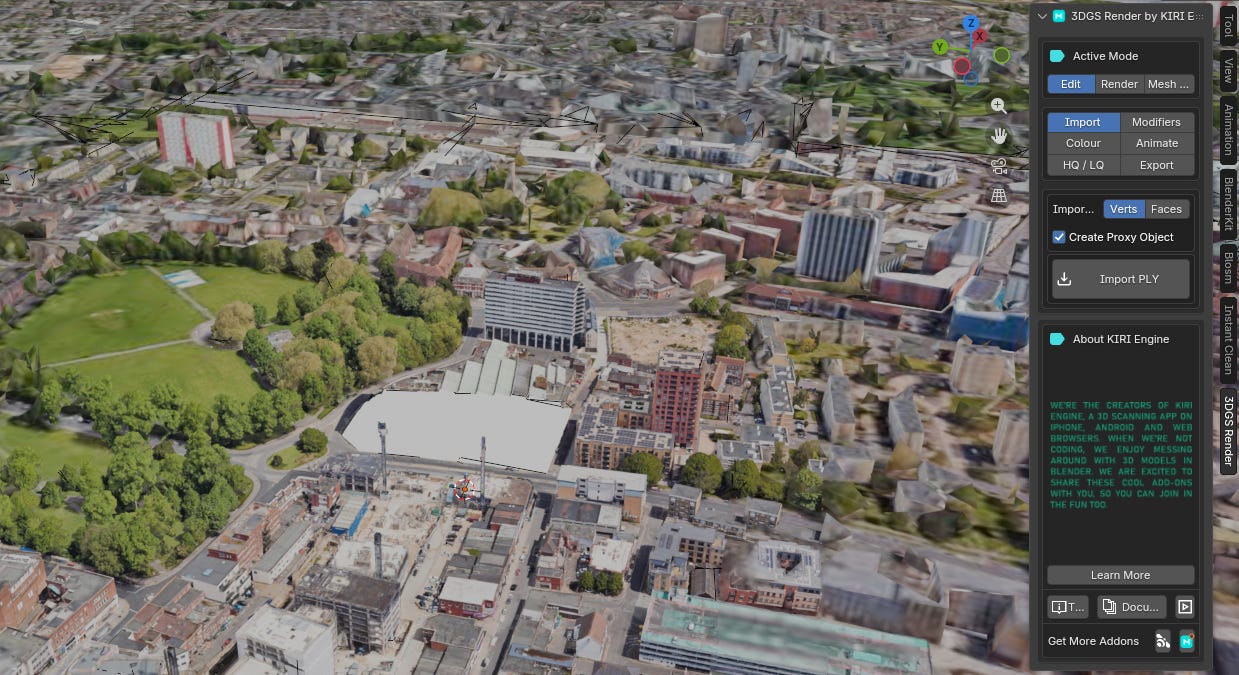
After importing it, you can import the .PLY file, edit like a normal blender object, and place it wherever you want in the scene. Make sure you switch to render mode to see the results of your created splat.
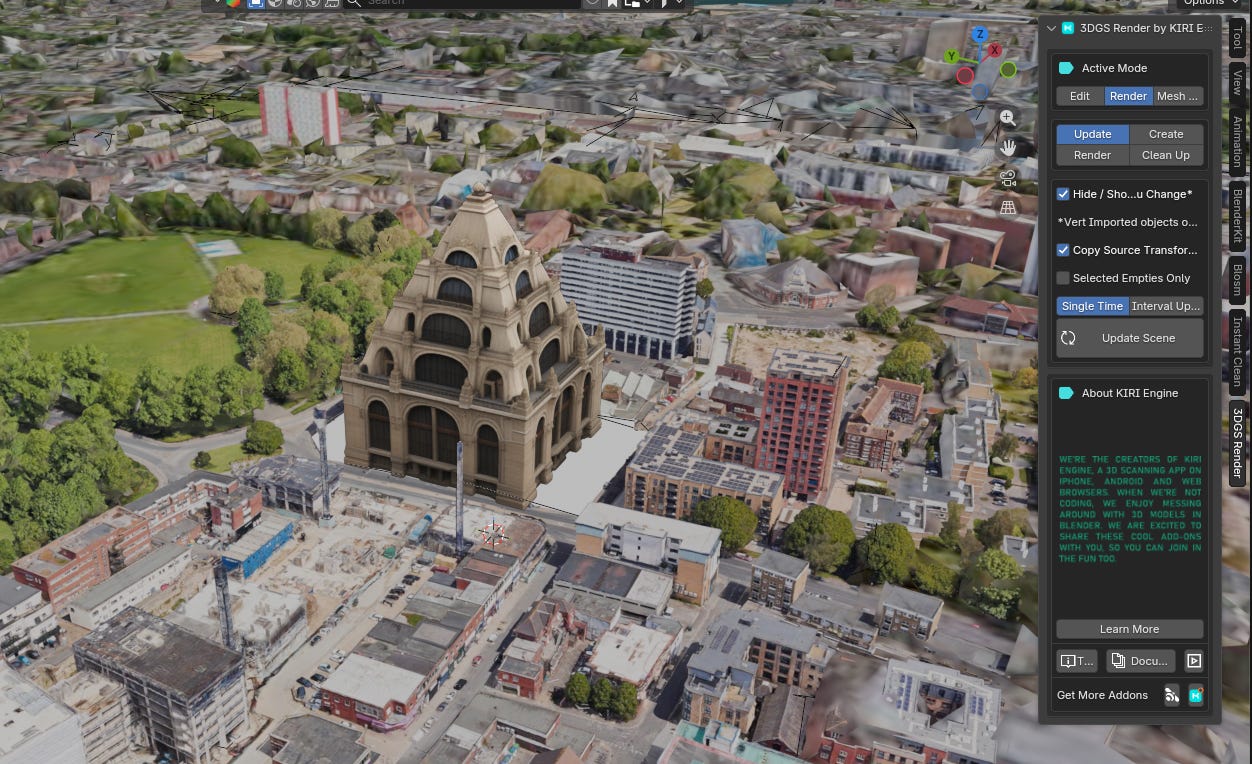
And there you are - now you have the capability to import any splat created by SAM3D into blender in only a few minutes.